Quick Summary
A WiFi thermostat should make daily operation easier, but app control works well only when the setup process is clear. If the wall unit works normally while the app cannot connect, sync or stay online, the issue is usually related to 2.4GHz WiFi, Smart Life / Tuya App pairing, router distance, user permission or handover instructions.
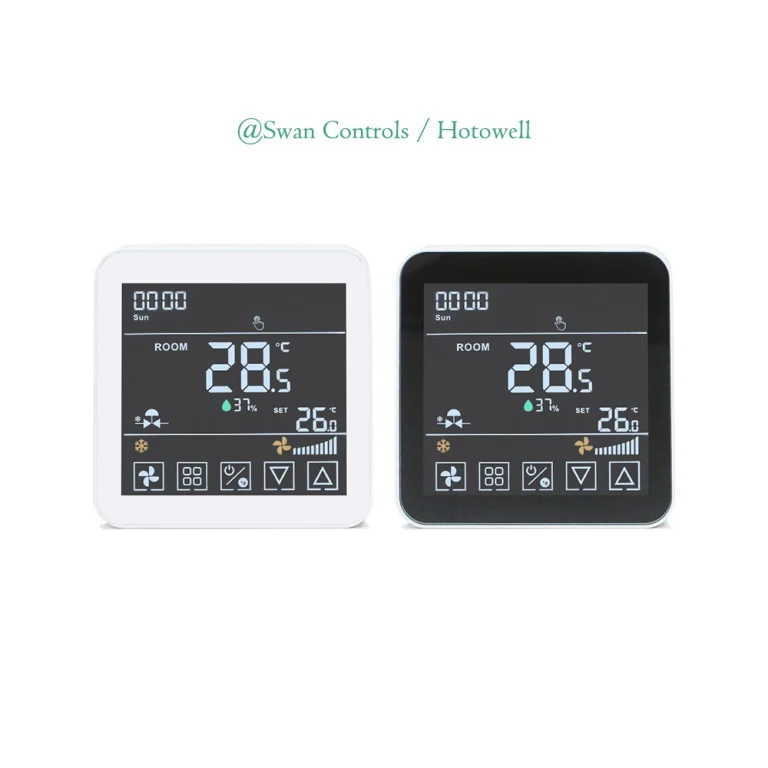
This article explains common WiFi thermostat app control issues from the perspective of Swan Controls, an affiliate of Hotowell. We mainly use fan coil thermostat examples because FCU projects show the point clearly: once the correct local control model is confirmed, the app layer should be explained, tested and handed over properly.
App Issues Are Not Always Product-Matching Issues
A smart thermostat or WiFi thermostat is often searched together with app control, schedule and remote operation. In real B2B projects, however, we should not mix two different problems. If the thermostat model itself does not match the system, the app cannot solve it. If the model already works locally but the app does not connect, the issue is usually on the WiFi and user-operation side.
So before we handle app complaints, we first check one simple point: does the wall thermostat control the equipment locally? If yes, the basic model, output and local control logic are probably working. For a fan coil thermostat, this means the screen works, temperature setting responds, fan speed changes as expected and the valve or output logic operates normally. After that, the troubleshooting should move to 2.4GHz setup, pairing mode, router signal, account ownership, device sharing and reset instructions.
This is the only system-level point we need to make in this article. The main topic is not thermostat system matching. The main topic is how to prevent WiFi thermostat app control complaints after the right model has already been selected.
Quick Table: Where Should We Start Troubleshooting?
| User feedback | First judgment | First action |
|---|---|---|
| The thermostat screen does not power on | Installation or power issue | Check power supply and wiring before discussing the app |
| The wall unit works, but the app cannot add it | Pairing setup issue | Check 2.4GHz WiFi, password and pairing mode |
| The app worked before, but now shows offline | Network change or weak signal | Check router distance, WiFi password or router replacement |
| A new user cannot manage the device | Account or ownership issue | Check device sharing and previous account binding |
| The app does not show an expected function | Function expectation issue | Check the model function list and app-supported controls |
Why 2.4GHz WiFi Is Usually the First Setup Point
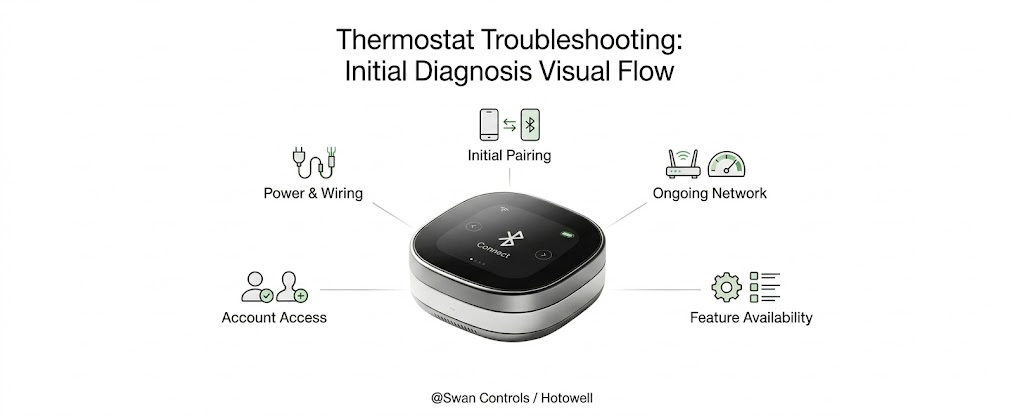
One common reason a WiFi thermostat cannot be added to the app is that the phone is not connected to a 2.4GHz network during setup. Many thermostat WiFi modules are designed for 2.4GHz because wall-mounted room devices usually need stable indoor coverage more than high bandwidth.
The problem is that many users do not think about WiFi bands. They may see one router name and assume everything is the same. Some routers combine 2.4GHz and 5GHz under one SSID, while some users connect the phone to a 5GHz-only network. During pairing, the app may fail, time out or fail to find the device.
For Swan Controls WiFi thermostat models, we already treat this as a standard instruction point. We clearly remind users to connect through 2.4GHz WiFi when pairing the device. This should be shown in the user manual, quick guide and after-sales notes.
For distributors and OEM partners, this small detail is important. A clear sentence such as “Please use 2.4GHz WiFi for app pairing” can prevent repeated support questions and unnecessary product returns.
Smart Life / Tuya App: What It Can Actually Control
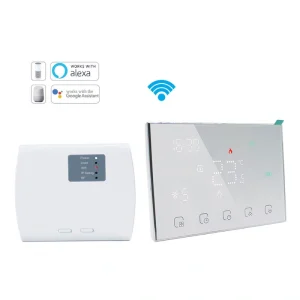
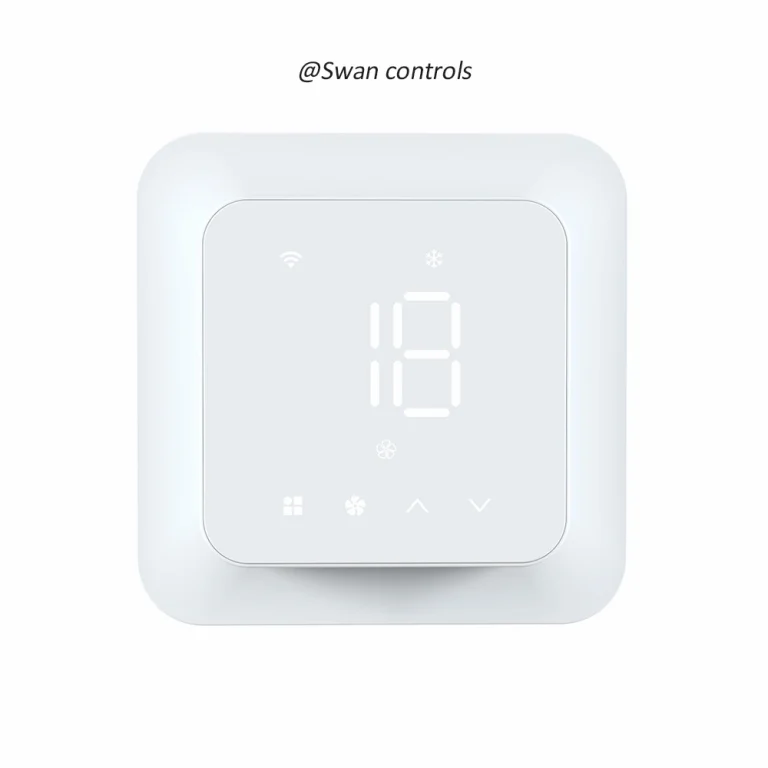
For many of our WiFi thermostat models, Smart Life App or Tuya App can be used for remote operation. Depending on the exact model, the app may support temperature setting, power on/off, working mode, fan speed, schedule and some parameter settings.
The key point is that the app controls the functions already supported by the thermostat platform. It does not create a different hardware platform. This should be explained clearly before ordering, especially for OEM and project customers.
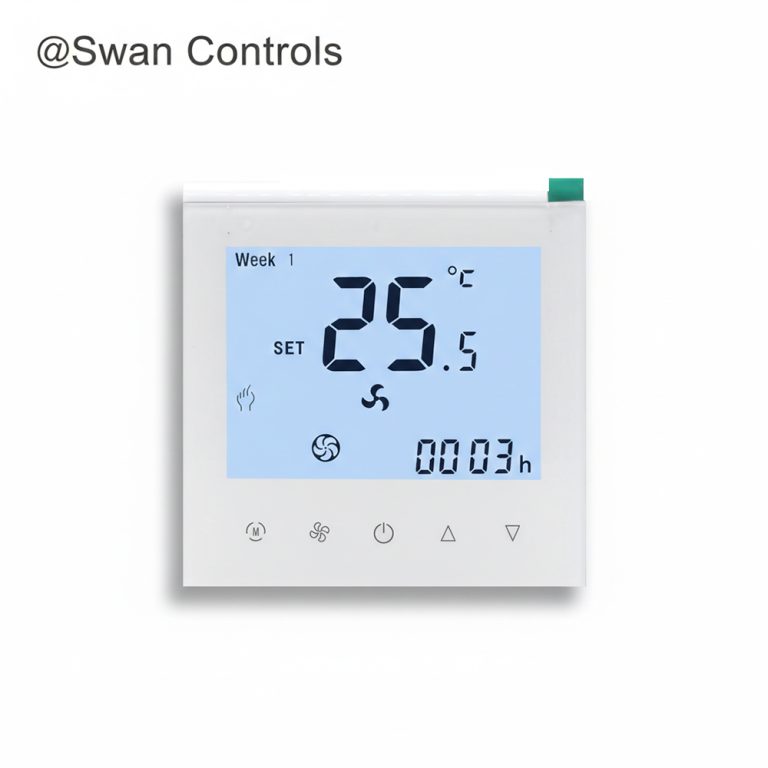
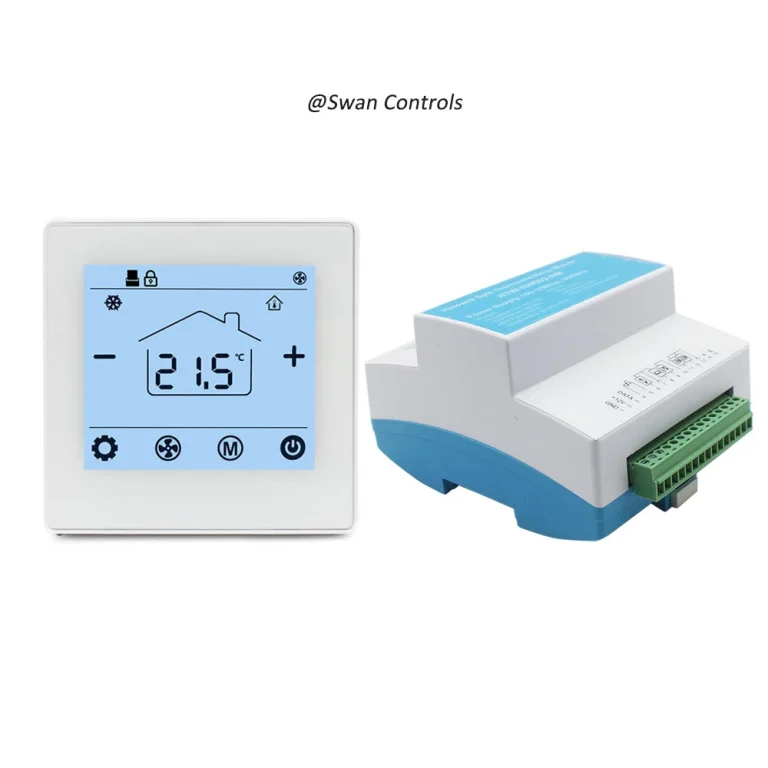
For example, for a 2-pipe fan coil project with 3-speed fan and on/off valve control, we may recommend our Swan Controls HTW-WF06-FC-2W WiFi fan coil thermostat. We recommend it because the FCU control direction fits the project first, and app control then adds remote convenience.
For a 4-pipe FCU project, the direction is different. We may recommend our Swan Controls HTW-EB-FC-4W WiFi thermostat for 4-pipe FCU control because the local control requirement is different, not because the word “WiFi” alone decides the model.
If a project needs WiFi, EC fan, 2-pipe 0–10V modulating valve control and 24V valve output, we may recommend our Swan Controls HTW-FC09-FVMN-24WF modulating WiFi thermostat.
First Pairing Problems and How We Reduce Them
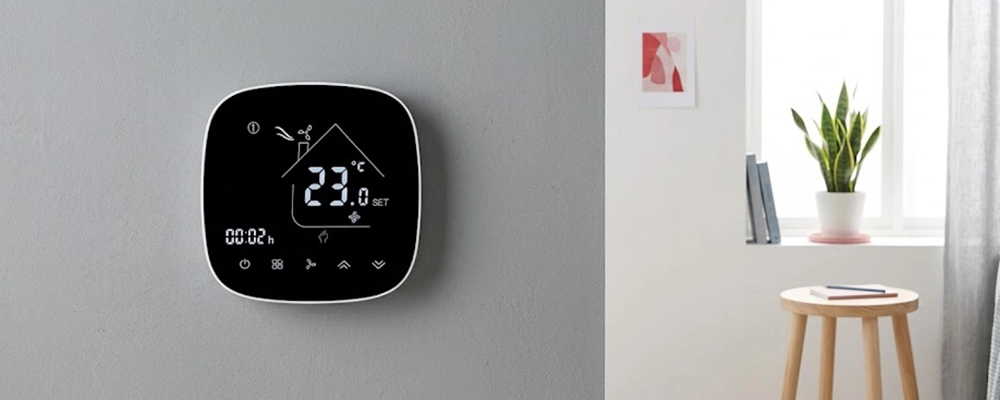
First pairing is where many WiFi thermostat app issues happen. The thermostat may power on correctly and local operation may work normally, but the user still cannot add the device to Smart Life App or Tuya App.
In our experience, the most useful prevention is a clear setup guide with the right steps in the right order. We usually want the user or installer to check:
- whether the phone is connected to 2.4GHz WiFi;
- whether the WiFi password is correct;
- whether the thermostat has entered pairing mode;
- whether the selected app pairing method matches the device state;
- whether the phone is close enough to the router during setup;
- whether required phone permissions are enabled;
- whether the router blocks new devices or isolates IoT devices.
A good guide should show the app name, reset method, pairing mode and what the user should see during successful setup. For OEM or wholesale projects, these materials can be adapted into the customer’s manual, carton insert or online support page.
Router Distance, Wall Position and Signal Stability
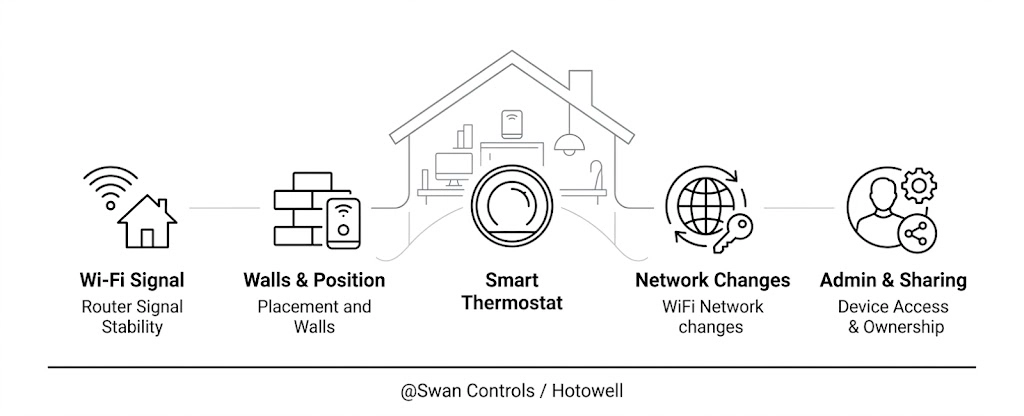
A thermostat is fixed on the wall. After installation, the user cannot move it closer to the router like a phone. This makes router distance and wall position important for any WiFi thermostat used in an apartment, office or light commercial room.
If the signal is weak, the device may pair successfully at first but later show offline in the app. Local control may still be normal because the thermostat is still working on the wall. The unstable part is the wireless connection.
This can happen when the thermostat is far from the router, behind several walls, close to metal obstruction, inside an equipment cabinet or installed in a building with many wireless devices.
Our practical advice is simple: check WiFi signal at the thermostat installation point before handover. If signal is weak, improve router coverage, add an access point or avoid heavy obstruction where possible.
User Permission, Device Sharing and Router Changes
Some app issues are not caused by the product or the router.
They come from account ownership or network changes. In apartment projects, the first person who pairs the device may be the tenant, landlord, installer or property manager. In office projects, it may be the admin, contractor or a temporary staff member. If nobody defines who owns the device in the app, later users may not know how to manage it.
A WiFi thermostat may also work well for months and then appear offline after the router, WiFi name or WiFi password changes. The wall thermostat may still work locally, but cloud control cannot reconnect until the new network is set.
We recommend defining the app administrator before project delivery and adding a router-change note in the guide: “If the router, WiFi name or WiFi password changes, please reset the thermostat WiFi connection and pair it again in Smart Life App or Tuya App.” Taking these quick preventive steps during project delivery ensures a seamless transition.
When account roles and network protocols are clearly sorted out from the start, OEM partners and contractors can avoid unexpected service trips and keep end users completely satisfied with their smart climate system.
Troubleshooting Table: Common App Control Issues
This second table is different from the first one. The first table helps decide where to start. This table gives a practical support checklist for WiFi thermostat app complaints.
| App control issue | Likely cause | What to check | Prevention |
|---|---|---|---|
| Device cannot be added | Phone is not on 2.4GHz WiFi | Confirm the phone network before pairing | Put a 2.4GHz reminder in the manual |
| Pairing times out | Device is not in pairing mode | Check reset method and pairing status | Provide reset steps and app screenshots |
| Device shows offline | Weak signal or router change | Check router distance, SSID and password | Test signal at the wall position |
| App control feels unstable | Poor coverage or busy network | Check router load and access point position | Improve WiFi coverage before handover |
| New user cannot control the device | Account ownership is unclear | Check device sharing and previous account | Define administrator rules before delivery |
| Expected function is missing in app | Function is not supported by this model | Check model configuration | Confirm app-supported functions before ordering |
| Several rooms are confusing in the app | Room names are unclear | Check naming and room grouping | Prepare a naming rule for project handover |
Common Mistakes and Consequences
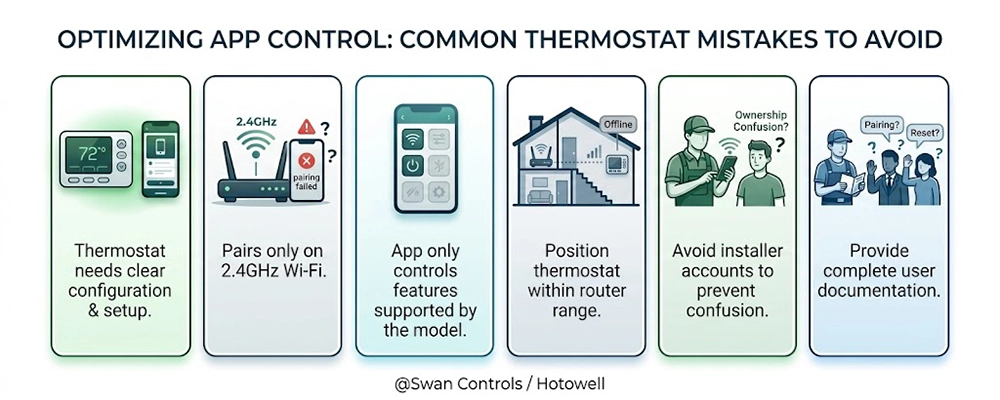
The first mistake is treating app control as the whole product. A WiFi thermostat still needs a clear model configuration and a clear app setup process.
The second mistake is not explaining 2.4GHz WiFi clearly. The result is pairing failure, repeated support messages and unnecessary complaints.
The third mistake is assuming the app can control every function. The app can only show and control functions supported by the selected thermostat model.
The fourth mistake is ignoring router distance. The result is an offline device after installation, even when local room control works normally.
The fifth mistake is using a temporary installer account for project setup. The result is ownership confusion when the real user, landlord or office manager takes over.
The sixth mistake is missing after-sales documents. The result is that distributors and installers must explain the same pairing, sharing and reset steps again.
Practical Cases
For an apartment user, the wall thermostat works but the phone cannot add the device. The first checks are 2.4GHz WiFi, correct password, pairing mode, phone permissions and router distance. For apartment and light residential distribution, a standard WiFi thermostat with clear setup guidance is often better than a heavily customized model.
For a small office, most room thermostats stay online, but one or two show offline. The wall control still works, so the likely reason is weak network coverage. The office may need better WiFi coverage, not a different thermostat. For office projects that need both app convenience and project communication, we may recommend our Swan Controls HTW-WF11-FC-4ENS1W WiFi and Modbus fan coil thermostat.
For a rental apartment, the first tenant pairs the device with a personal account. Later, a new tenant cannot add it easily. This is not a hardware failure. The landlord or property manager should decide who owns the device account and how the device should be shared or reset.
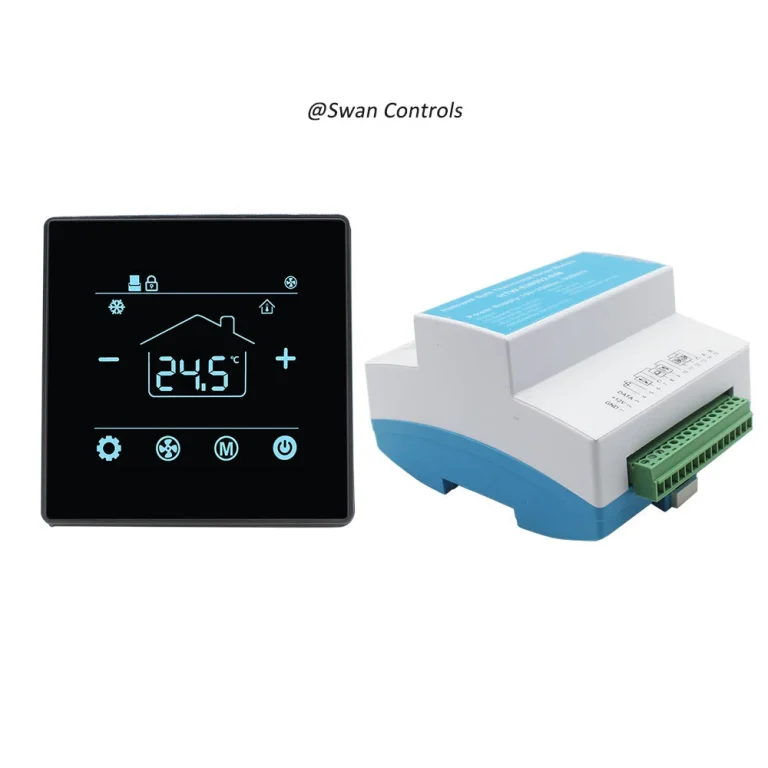
For a hotel or serviced apartment project, the real need may include EC fan control, Modbus, keycard input, external sensor and 2-pipe or 4-pipe on/off valve logic. In this situation, app control is only one part of the requirement. We may recommend our Swan Controls HTW-FC08-ECNW smart EC fan thermostat platform because the project needs a richer control platform.
FAQ
1. Why does my WiFi thermostat not connect to the app?
A WiFi thermostat may fail to connect because the phone is not using a 2.4GHz WiFi network, the password is wrong, the thermostat has not entered pairing mode, the router is too far away, or app permissions are not enabled. If local control works normally, the issue is usually related to WiFi setup or app pairing rather than the basic thermostat control logic.
2. Does a WiFi thermostat support 5GHz WiFi?
Many thermostat WiFi modules are designed for 2.4GHz WiFi because it usually provides better indoor coverage for fixed wall-mounted IoT devices. Some routers combine 2.4GHz and 5GHz under one network name, which may confuse the pairing process. Before pairing, we recommend connecting the phone to a clear 2.4GHz network.
3. Can Smart Life or Tuya App control all thermostat functions?
Smart Life or Tuya App can control functions that are supported by the thermostat model and firmware, such as temperature setting, power, mode, fan speed or schedule, depending on the model. The app cannot add hardware functions that the thermostat does not have, such as unsupported external sensor input, dry contact output, 0–10V valve control or keycard input.
4. Why does the thermostat work locally but show offline in the app?
If local control works but the app shows offline, the thermostat is probably still controlling the HVAC or heating equipment correctly. The problem may come from weak WiFi signal, router distance, changed WiFi password, router replacement, network isolation or temporary internet interruption. Check the network environment before judging the thermostat as defective.
5. What should we do if the router or WiFi password changes?
If the router, WiFi name or WiFi password changes, the thermostat usually needs to be reset and paired again in the app. The device may still remember the old network information, so it cannot automatically connect to the new router unless the setup is updated.
6. What documents help reduce WiFi thermostat after-sales complaints?
Clear documents should include a 2.4GHz WiFi reminder, Smart Life or Tuya App pairing steps, reset instructions, screenshots, device sharing guidance, router replacement instructions and a function list showing what the app can and cannot control. These documents help installers, distributors and end users solve common app issues faster.
References / Sources
Step 1: Add Device | Tuya Smart App Help | Tuya | Tuya Smart Help Center
How to Troubleshoot if Wi-Fi Device Fails to Connect | Tuya Support | Tuya | Tuya Support Help Center
Use SmartLife App | Tuya Developer Documentation Team | Tuya Developer | Tuya Developer Documentation
Fix Thermostat Connection to App or Wi-Fi | Google Nest Help | Google | Google Nest Help
Wi-Fi Networks That Are Incompatible or Are Not Recommended | Google Nest Help | Google | Google Nest Help
2.4GHz vs. 5GHz vs. 6GHz: What’s the Difference? | Intel Wireless Technology Team | Intel | Intel Product and Technology Documentation
The Evolution of Wi-Fi Technology and Standards | IEEE Standards Association | IEEE | IEEE Standards Beyond Standards
What Is the Difference Between WiFi 6 and WiFi 5? | ASUS Support | ASUS | ASUS Support FAQ
Final Note
A WiFi thermostat can improve daily operation when app control is useful, but it should not be treated as the whole product. For Swan Controls and our partners, the practical goal is to make app operation clear after the correct thermostat model has been selected. Clear 2.4GHz WiFi guidance, Smart Life / Tuya App pairing steps, router replacement instructions, device sharing rules and honest explanation of app limits can reduce after-sales complaints and help distributors, OEM customers and project teams support end users more easily. Before confirming an OEM, wholesale or project order, please feel free to get in touch with us to confirm the suitable model, app control scope, wiring requirement, customization options and project documents.
Copyright © Swan Controls / Hotowell. All rights reserved. This article is written and published by Swan Controls, an affiliate of Hotowell.